Quick Start
Use this guide to prove the workflow first: open a project, make one small edit and verify it in the terminal. It works with a local project, an SSH workspace, or Android Local Linux on a supported device.
1. Open a workspace
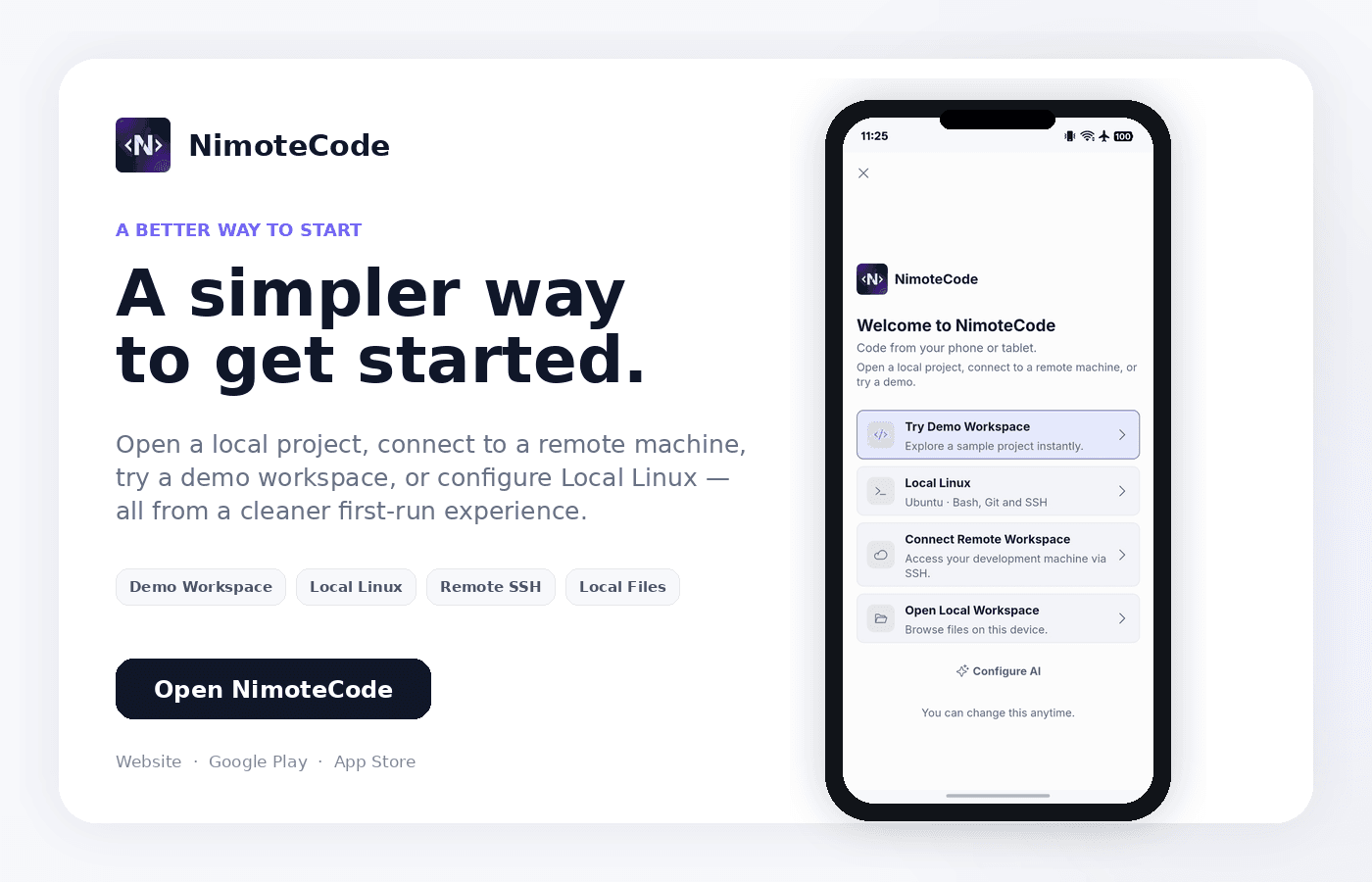
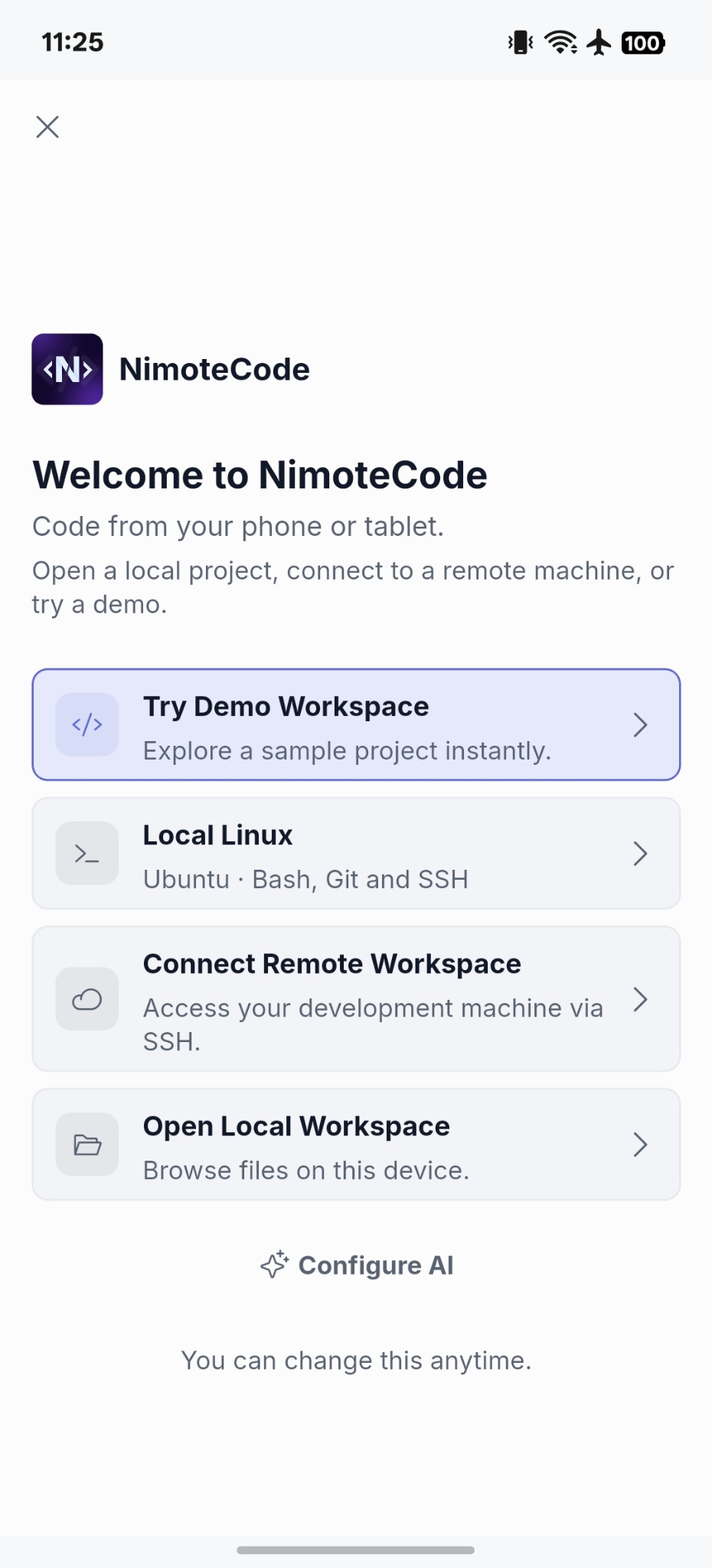
Choose Open Local Workspace for a project on your device, Connect Remote Workspace for a remote host, or Local Linux for bundled Ubuntu on a supported Android 8+ ARM64/x86_64 device. You can also use Try Demo Workspace to explore a sample project immediately. Local Linux needs no root access and is not available on iOS; see Android Local Linux for its setup and lifecycle. For an SSH workspace, enter the host, port and username; then choose password, key file or pasted private key authentication. Confirm the project root before you start working.
2. Open, edit and save a file
Select a file in Explorer or from Search. It opens in the tabbed editor. Make a small change, save it, and keep the file active if you plan to ask AI about it.
3. Verify in Terminal
Open Terminal in the same workspace and run a harmless command such as pwd, ls, or your project’s test command. Use output search if the result is long.
4. Choose the next step
For remote production environments, begin with read-only inspection and review every command, AI suggestion and Git change before it is applied.
Continue with SSH Workspace, Editor, or Watch Demo.