
Local and Remote SSH Workspaces
NimoteCode starts with a workspace: a local project stored on your device or a remote project reached through SSH. Explorer, Editor and Terminal stay connected to the same project root, so a task remains understandable from first inspection through verification. For bundled Ubuntu on Android, see Android Local Linux.
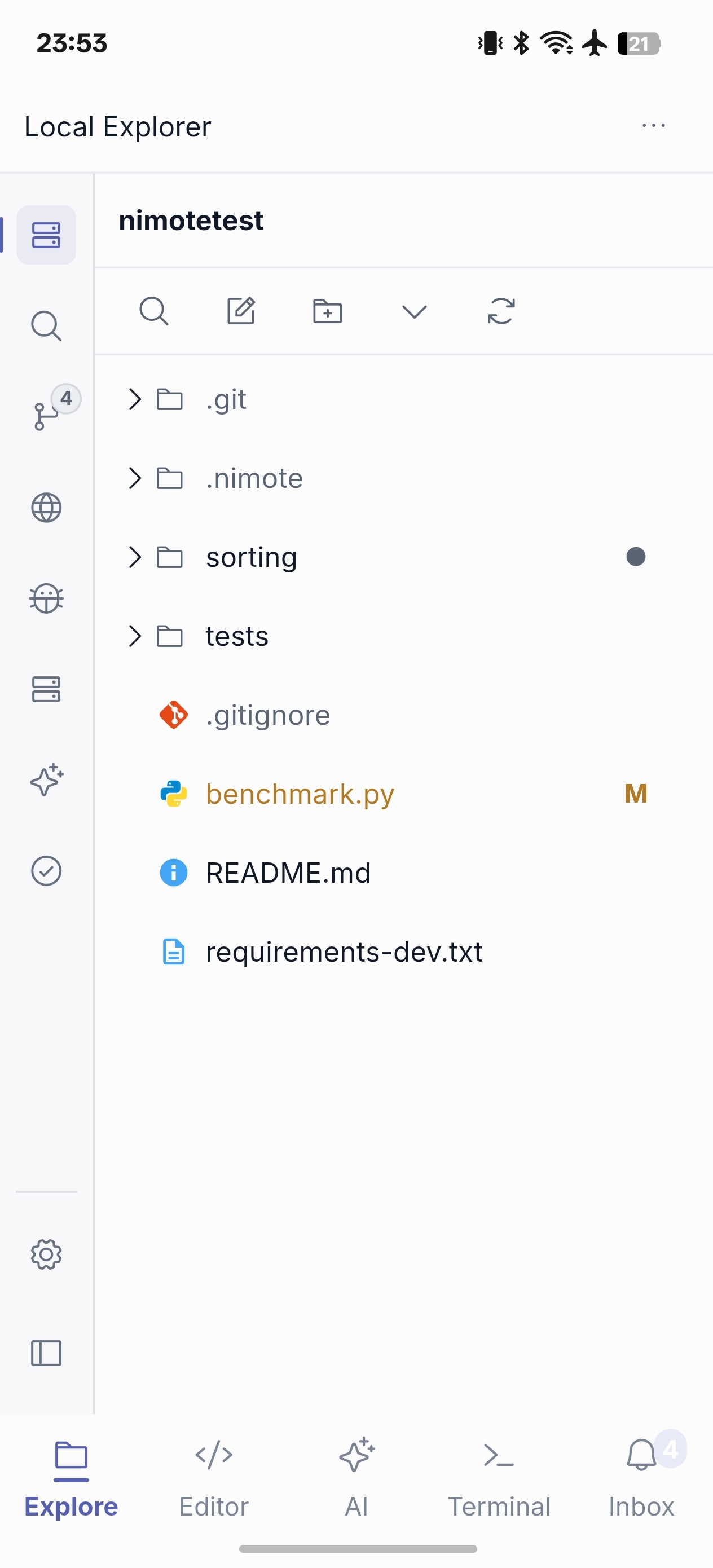
Open a local workspace
Choose Local Explorer to browse a project stored on your device. Confirm the folder before editing files, running commands or reviewing changes in Source Control.
Connect an SSH workspace
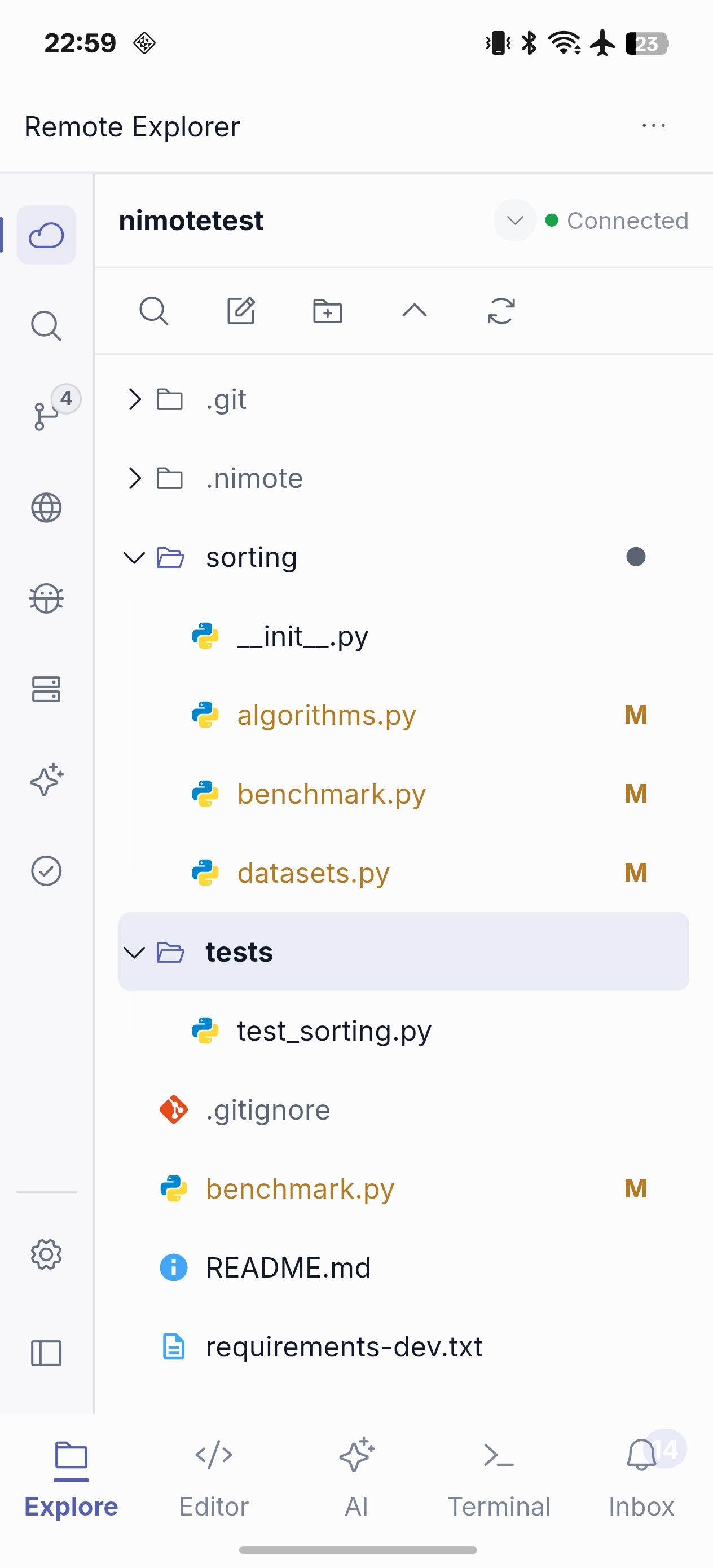
Connect in four steps:
- Create or select an SSH profile.
- Enter the host, port and username.
- Authenticate with a password, private-key file or pasted private key.
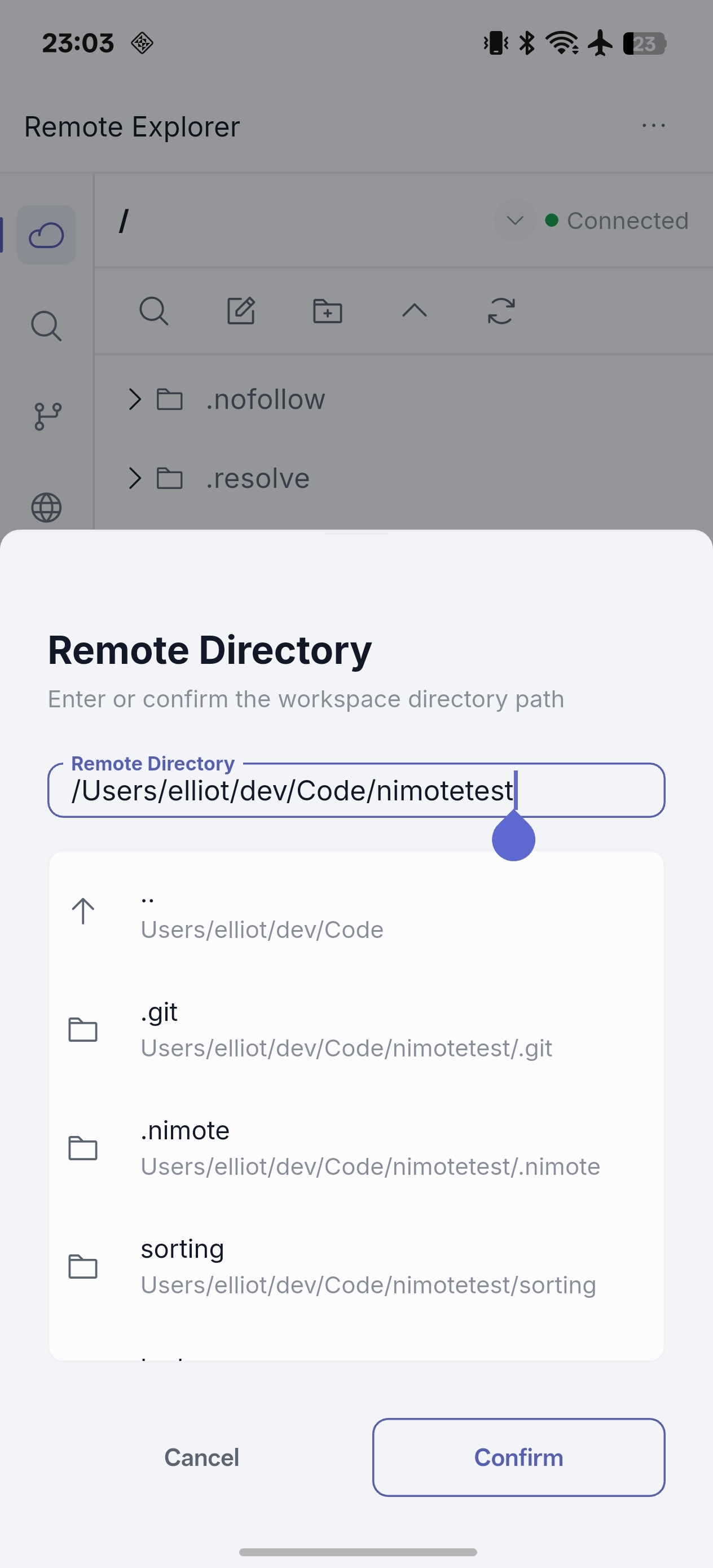
- Confirm the remote project root, then open it in Remote Explorer.
Choose and confirm the remote directory
Explorer is the starting point for an SSH-backed project. After connecting, select Remote Explorer, then confirm both the host and the project root before opening files or running commands.
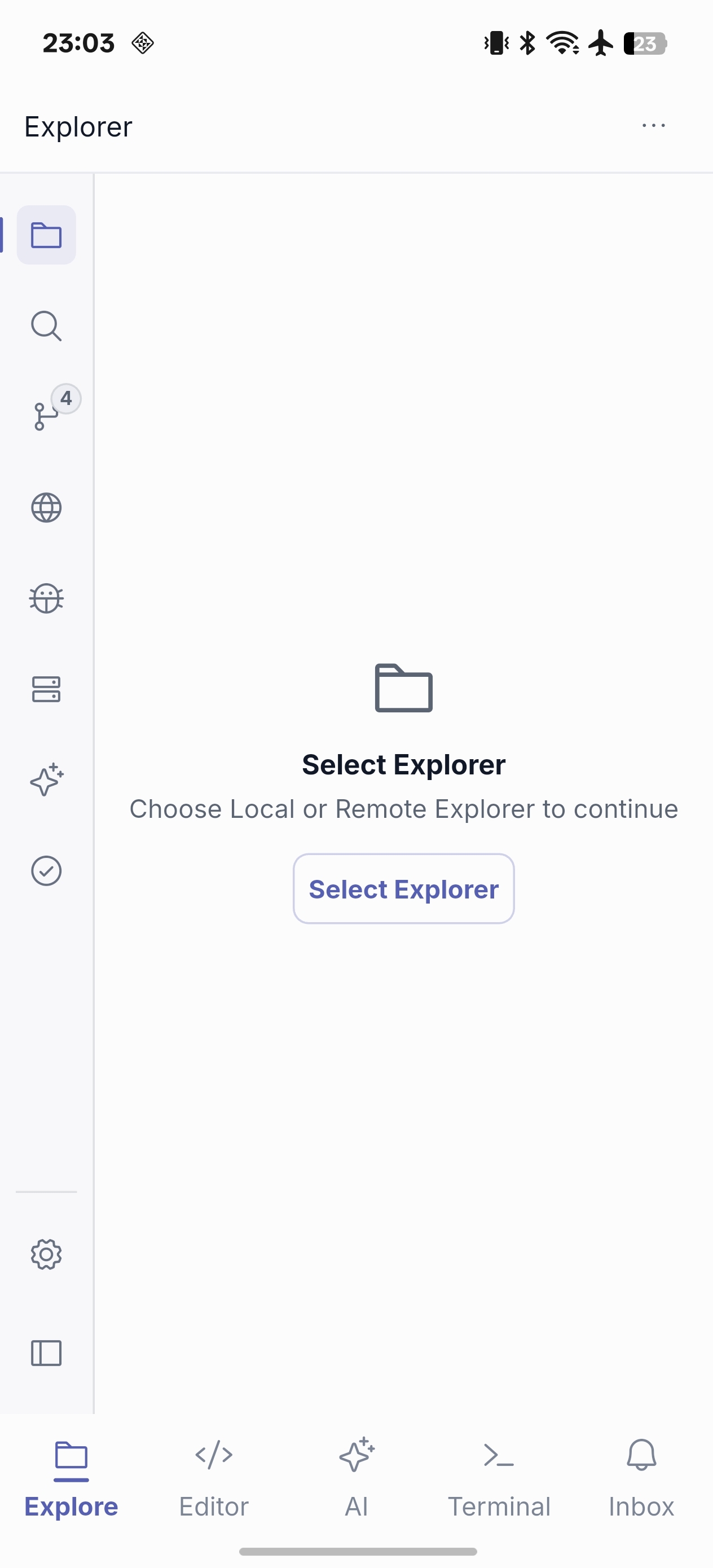
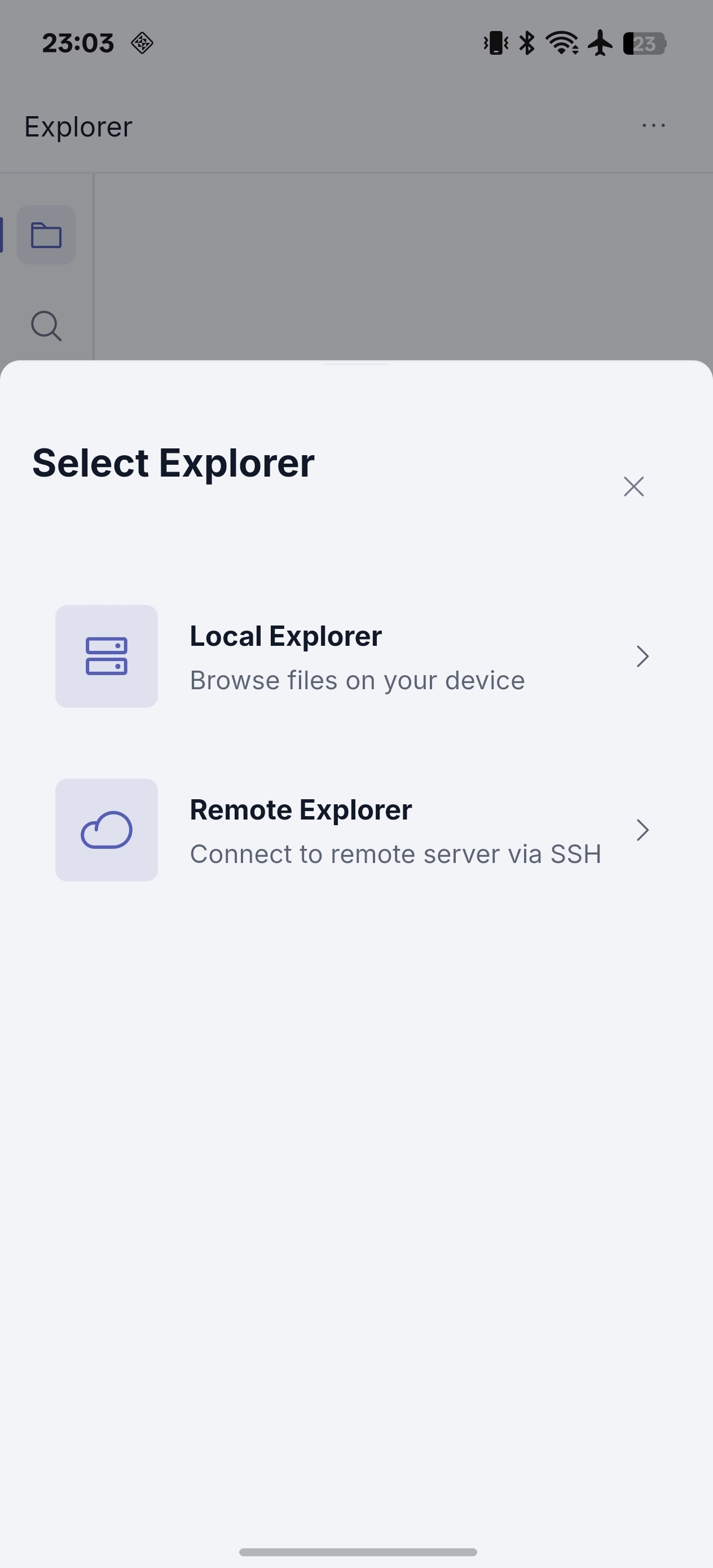
Choose the project root—not merely the server home directory. This gives Editor, Terminal, Search and Source Control a shared boundary and reduces the chance of running a command in the wrong location.
What stays in context
- Browse the remote project and open files in Editor.
- Run shell commands in Terminal for that workspace.
- Search remote file content with Search.
- Review a focused patch in Source Control; use Pro only if the delivery needs a gated Git write action.
Safer remote habits
Use a separate profile for each environment, prefer a least-privilege account and key-based authentication for sensitive hosts, and choose a deliberate project root. Reconnect-aware behavior and connection reuse make remote commands and preview tunnels more resilient, but you should always verify the active host and directory before running a write command.
Next: Terminal · SSH remote development workflow · Security and Safety