
Custom plugins
Custom plugins combine workspace data, forms, and actions into a reusable panel. Use them to bring together information from Git, LSP, Tasks, Terminal, and Agent, or to open the native panels you use most often.
Create your first plugin
Configure a model in AI configuration, then open the workspace the plugin will use.
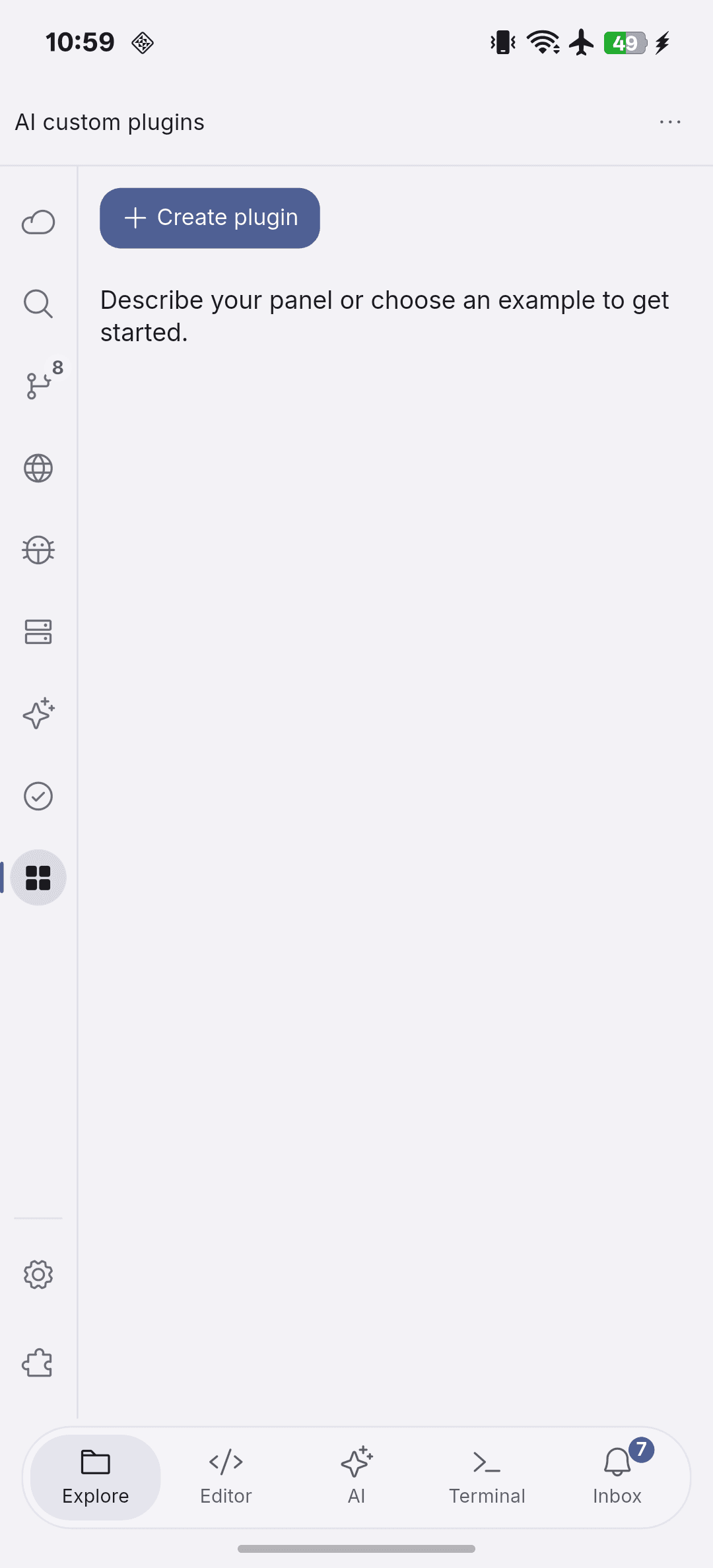
- Open AI custom plugins and select Create plugin.
- Describe the information and actions you need. For example: “Show the current branch, changed files, and LSP error count, with a shortcut to Source Control.”
- Refine the result in the same conversation. Specify the fields, labels, and actions that need to change.
- Preview the panel, then save and install it when it matches your requirements. Review the requested permissions before approving installation.
Choose data and actions
| Need | Plugin capability |
|---|---|
| Inspect the current project | Display workspace, Git, LSP, Tasks, terminal, or Agent data. |
| Open a tool | Provide shortcuts to native Git, Tasks, Terminal, AI, and editor panels. |
| Collect input | Add form fields and use their values in supported actions. |
| Run a workflow | Combine reads and actions, pass results between steps, and define conditions or retries. |
| Run a script | Execute Python, JavaScript, or Shell on the selected SSH or Local Linux target. |
Data follows the active workspace. Switching workspaces changes the context available to the plugin. File shortcuts require a stable native file path and are unavailable in document-provider workspaces.
Preview, permissions, and execution
Preview checks the panel without executing operations that change files, send requests, or run commands. Before installation or an update, review the permissions the plugin requests. File writes, network requests, terminal commands, task runs, and file opens require confirmation when invoked.
Script actions use interpreters already installed on the selected target and run with that account’s permissions. Install the required Python, Node.js, or shell environment there before using those actions. A plugin does not install a language server or debug adapter; configure those through LSP and Debugging.
Edit and manage a plugin
Continue the plugin conversation to change an existing panel. Preview the revision before saving it, and review any permission changes when updating. The plugin definition and form configuration are stored separately. You can enable or disable a plugin, or restore a recent version.
For built-in panel visibility and editor typography, use Settings.
Background jobs and schedules
The Android client supports background workflows and schedules on SSH or Local Linux targets. The target needs Python 3.9 or later with SQLite. iOS supports foreground plugin actions but does not provide background workflows or schedules.
Describe the workflow and schedule in the plugin conversation. Review the execution plan, inputs, and schedule before deployment. Open Background jobs & schedules to inspect output and refresh, pause, resume, or cancel a job. A background job can continue after the app disconnects while its target remains running; a target reboot may require reconnecting to recover it.
Panel navigation, LSP operations, and native configured tasks remain foreground operations. Use target-side credentials for unattended jobs because secret form fields are not retained for background execution.