
Connect NimoteCode to Windows 11 via SSH and SFTP
Version requirement: NimoteCode 2.3.0 or later. This guide targets Windows 11. Similar instructions may apply to Windows 10 or Windows Server, but untested combinations are not guaranteed. See the 2.3.0 release notes.
1. What this setup does
Enable Microsoft's OpenSSH Server (sshd) on the Windows PC. NimoteCode on a phone or tablet connects over SSH, and its SFTP file workflow can browse and edit files accessible to the signed-in Windows account. The remote terminal provides Windows shell access.
NimoteCode (phone/tablet) -- SSH TCP/22 --> Windows 11 OpenSSH Server
                                             |-- SFTP: file browsing and editing
                                             `-- Shell: PowerShell / CMD (as configured)
This is not Remote Desktop and does not provide a graphical Windows session. WSL2 is not required. SSH connectivity, SFTP operation, and shell operation must be validated separately. UI labels can differ across application releases.
2. Prerequisites
- NimoteCode 2.3.0+ (check the actual installed release).
- A Windows 11 PC (Home/Pro/Enterprise; managed PCs can restrict feature installation or inbound connections).
- A Windows account with a usable password or configured SSH key; a Windows Hello PIN is not the SSH password.
- For initial setup, both devices should be on the same trusted local network.
- Unless specified otherwise, run the Windows commands below in PowerShell as Administrator.
3. Install and start Windows OpenSSH Server
Check the optional component:
Get-WindowsCapability -Online | Where-Object Name -like 'OpenSSH*'If OpenSSH.Server~~~~0.0.1.0 is NotPresent, install it:
Add-WindowsCapability -Online -Name OpenSSH.Server~~~~0.0.1.0You can also install OpenSSH Server through Settings → Optional features (search for the feature if its location differs). Labels may vary between Windows 11 builds. If installation fails, investigate Windows Update and organization policy before retrying.
Start the service and enable automatic startup:
Start-Service sshd
Set-Service -Name sshd -StartupType Automatic
Get-Service sshd
Expect Running. If the service is missing, verify the server component installed successfully.
Check the listening address:
Get-NetTCPConnection -LocalPort 22 -State Listen -ErrorAction SilentlyContinue |
  Select-Object LocalAddress, LocalPort, OwningProcess
Typical listening addresses are 0.0.0.0 and/or ::. Listening on 127.0.0.1 only generally prevents other LAN devices from connecting. If needed, review C:\ProgramData\ssh\sshd_config for Port, ListenAddress, and Subsystem sftp. Validate before restarting:
& "$env:WINDIR\System32\OpenSSH\sshd.exe" -t
Restart-Service sshd
Do not blindly replace the entire configuration file.
4. Check the Windows Firewall rule
Installing OpenSSH Server normally creates the OpenSSH-Server-In-TCP rule:
Get-NetFirewallRule -Name 'OpenSSH-Server-In-TCP' -ErrorAction SilentlyContinue |
  Select-Object Name, DisplayName, Enabled, Direction, Action, Profile
Get-NetConnectionProfile | Select-Object InterfaceAlias, NetworkCategory
If the rule is missing, the following creates a restricted rule intended for trusted Private networks. If a custom rule with the same name already exists, inspect it before creating another:
New-NetFirewallRule -Name 'NimoteCode-OpenSSH-Private' `
  -DisplayName 'NimoteCode OpenSSH (Private)' `
  -Enabled True -Direction Inbound -Action Allow -Protocol TCP `
  -LocalPort 22 -Profile Private
If a rule applies only to Private but the active network is Public, the mismatch may block access. Prefer changing the connection profile only if the network is trusted, rather than permanently enabling SSH across all network profiles:
Get-NetConnectionProfile
# Replace Wi-Fi with the exact interface alias on a trusted network only:
Set-NetConnectionProfile -InterfaceAlias 'Wi-Fi' -NetworkCategory Private
An Any profile is not the preferred default. Blocking rules, source-address restrictions, third-party endpoint security, and router controls can still affect access.
Why are there several TCP/22 allow rules?
Rules such as NimoteCode SSH LAN, OpenSSH SSH Server (sshd), and NimoteCode Windows SSH can all allow the same TCP port. This is three rules, not three listening ports. Duplicate allow rules generally do not create a socket conflict. Do not delete rules based solely on names; inspect their scope first:
Get-NetFirewallRule -Direction Inbound -Enabled True |
  Where-Object { $_.DisplayName -match 'SSH|NimoteCode' } |
  Select-Object Name, DisplayName, Action, Profile
5. Find the right Windows address and username
ipconfig
whoami
Use the IPv4 address of the active physical Wi-Fi/Ethernet adapter (for example, 192.168.1.100), not a WSL, Docker, Hyper-V, or VPN virtual adapter. Local account, domain account, and Microsoft account SSH name formats can differ; verify the actual login from another SSH client. Do not use a Windows Hello PIN in the password field.
6. Validate the server before configuring NimoteCode
Test the TCP port on the PC itself:
Test-NetConnection 127.0.0.1 -Port 22TcpTestSucceeded : True proves only TCP connectivity, not successful login or SFTP.
From another Windows machine on the same LAN:
Test-NetConnection 192.168.1.100 -Port 22
ssh [email protected]
sftp [email protected]
Replace the example address and username. On first connection, verify the server's host key fingerprint before trusting it.
If loopback works but the LAN test times out, check the target IPv4 address, active network profile, firewall scope, guest Wi-Fi/client isolation, VPN, and third-party security software.
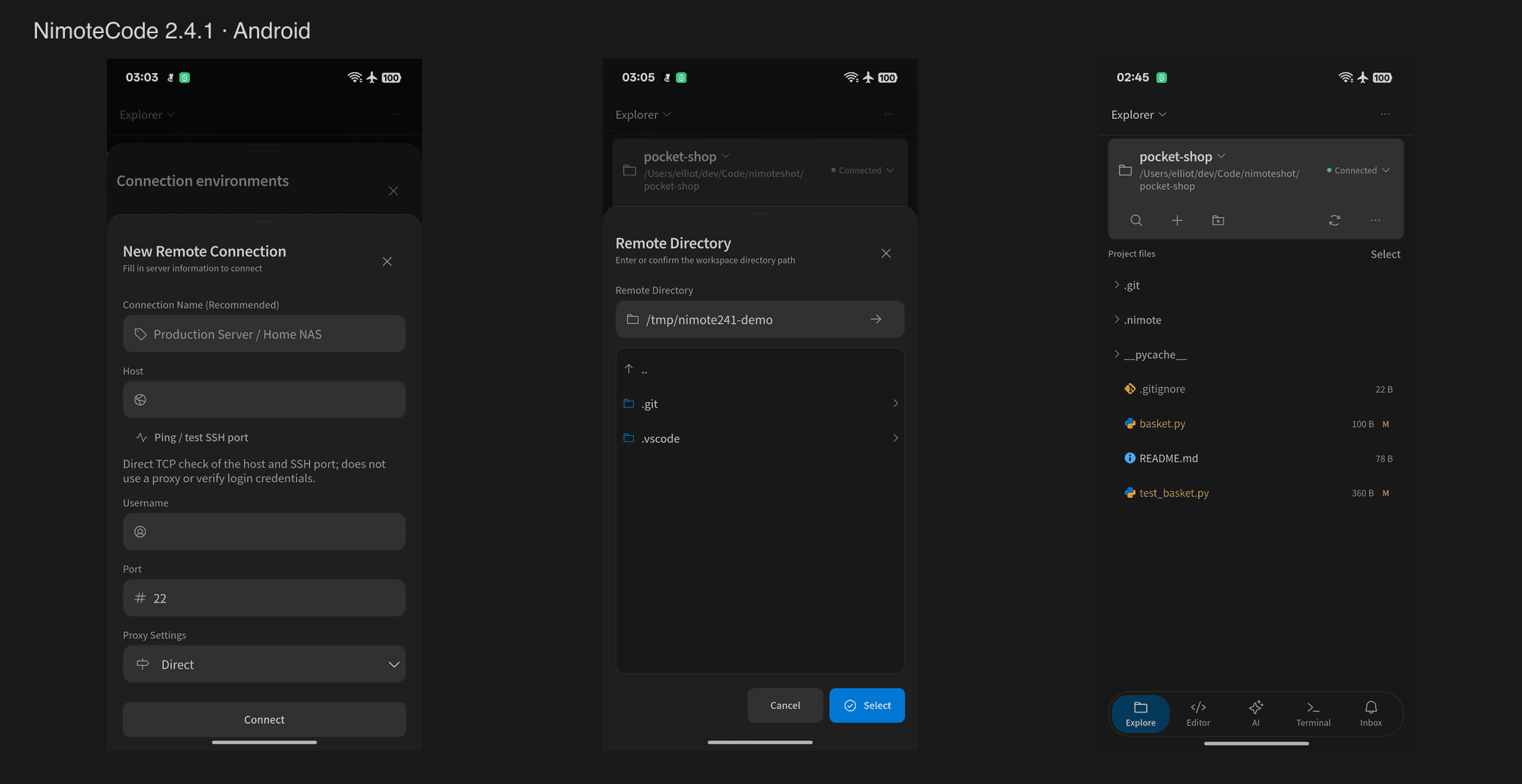
7. Add a Windows connection in NimoteCode 2.3.0+
- Install NimoteCode 2.3.0 or later.
- Open the app's workspace/connection flow and create an SSH connection or remote workspace (the exact menu wording may vary).
- Set Host to the Windows LAN IP (such as
192.168.1.100), Port to22, and Username to the Windows SSH login account. - Choose a supported password or private-key authentication method and save the connection. Protect all private keys.
- Verify the host fingerprint on first connection. Open the remote file view, list a directory, edit a test text file, and confirm that saving works.
- Open the remote terminal and check the current identity and directory with commands appropriate to the shell.
SFTP permissions are governed by the Windows account and NTFS permissions. Successfully connecting does not grant write access to protected directories such as C:\Windows or Program Files. Server-returned SFTP path syntax may not exactly match conventional C:\... paths.
Windows shell and host verification
Windows OpenSSH initially defaults to CMD unless its DefaultShell setting has been changed. NimoteCode Windows workspaces use PowerShell and SFTP. If your SSH login starts CMD and you intend to use PowerShell as the default, run the following in administrator PowerShell. This changes the shell for subsequent SSH sessions; coordinate the change on shared hosts.
New-ItemProperty -Path 'HKLM:\SOFTWARE\OpenSSH' -Name DefaultShell `
  -Value "$env:WINDIR\System32\WindowsPowerShell\v1.0\powershell.exe" `
  -PropertyType String -Force
Compare the fingerprint presented by the client with a trusted value obtained directly on the Windows host. For the default Ed25519 host key, run:
& "$env:WINDIR\System32\OpenSSH\ssh-keygen.exe" -lf "$env:ProgramData\ssh\ssh_host_ed25519_key.pub"8. Windows and WSL2 side by side
| Target | Example port | What it accesses |
|---|---|---|
| Native Windows OpenSSH | 22 | Windows files and shell |
| WSL2 Linux SSH | 2222 | Linux files and shell inside WSL2 |
Port 2222 is a user-chosen example, not a default WSL2 SSH port. To access WSL2 through that port, configure Linux sshd and ensure the Windows-to-WSL network path (such as forwarding or mirrored networking) works. WSL networking modes and restarts can affect reachability. Merely adding a Windows firewall rule for 2222 does not prove WSL2 is listening or reachable.
Get-NetTCPConnection -State Listen | Where-Object { $_.LocalPort -in 22,2222 }You do not need WSL2 merely to manage Windows files over SFTP.
9. Troubleshooting
| Symptom | Likely investigation area | Diagnostic action |
|---|---|---|
| TCP/22 times out | Wrong IP, firewall scope, client isolation, VPN/routing | Compare loopback and LAN Test-NetConnection |
| Connection refused | sshd stopped, wrong port, no listener | Get-Service sshd; Get-NetTCPConnection |
| Authentication fails | Account name, account password, key or policy | Test ssh -v from a desktop SSH client |
| SSH shell works but SFTP fails | SFTP subsystem, sshd configuration, permissions | sftp -v; inspect sshd config and event logs |
| Read works but save fails | NTFS ACL, read-only file or protected directory | Test in a user-owned directory |
| Port 22 works, 2222 fails | WSL sshd/forwarding/network mode | Check listeners inside WSL and on Windows |
| LAN works but internet doesn't | NAT/CGNAT/router/VPN | Prefer a secure VPN/private tunnel |
Lessons from the reported Windows 11 setup
Observed inbound allow rules included WSL2 SSH Access (Any), multiple WSL2 SSH 2222 (Any) rules, and OpenSSH SSH Server (sshd) (Private). This proves that firewall rules exist, not that sshd listens or that remote TCP packets can reach the PC. The Private restriction is relevant only if the current profile does not match; it is not a confirmed root cause on its own.
Run the following diagnostic block in elevated PowerShell:
Get-Service sshd
Get-NetTCPConnection -LocalPort 22 -State Listen -ErrorAction SilentlyContinue
Get-NetConnectionProfile | Select-Object InterfaceAlias, NetworkCategory
Get-NetFirewallRule -Name OpenSSH-Server-In-TCP -ErrorAction SilentlyContinue |
  Select-Object DisplayName, Enabled, Action, Profile
Test-NetConnection 127.0.0.1 -Port 22
ipconfig
To locate available OpenSSH event logs:
Get-WinEvent -ListLog '*OpenSSH*'10. Security recommendations
- Allow inbound SSH only from trusted networks or restricted source addresses. Use the
Privateprofile when practical. - For access across the public internet, prefer a carefully configured VPN or private tunnel over directly exposing TCP/22.
- Prefer SSH keys; keep private keys secret. Never paste passwords or private keys into troubleshooting reports.
- Keep Windows updated, use least-privileged accounts, and enforce file permissions.
- Verify host fingerprints. Investigate unexpected fingerprint changes.
- Do not disable Windows Firewall as a general troubleshooting workaround.
11. Scope and release notes
This guide covers NimoteCode 2.3.0+ connecting to Windows OpenSSH for SSH/SFTP. Additional workflows such as Git, language services, and Agent depend on host tools, permissions, and app version; identical behavior across Windows, Linux, and macOS is not guaranteed. See the release notes and workspace guide.